
Saturday, December 18, 2010
Please Vote For Me
I am doing this banner for my blog and I need your comment whether it is suitable or not. Thanks for comment.


Friday, December 17, 2010
The Best Antivirus Rating

Tired for choosing the best antivirus to secure your computer? I suggesting you to use Comodo Internet Security Premium. No need money to buy it just go the page and download it's freeware. It's very though and you also can customize your firewall until fifth level of security. How about their rating? Comodo Internet Security Premium get the highers voted which all of you can refer from the picture below and from link to the relevant website. So what are you waiting for? Go and get it free now! You can download it from Filehippo or on their website (Comodo) and try it now!
 Click here to get there.
Thursday, December 16, 2010
Computer Maintenance
 You may not realize it, but your computer and your car have something in common. They both need regular maintenance. No, you don't need to change your computer's oil. But you should be updating your software, keeping your anti virus subscription up to date, and checking for spy-ware. Read on to learn what you can do to help improve your computer's security.
Here are some basics maintenance tasks you can do today to start improving your computer's security. Be sure you make these part of your ongoing maintenance as well.
* Sign up for software update e-mail notices. Many software companies will send you e-mail whenever a software update is available. This is particularly important for your operating system (e.g., Microsoft VV!|VD0VV$® or Macintosh), your antivirus program, and your firewall.
* Register your software. If you still have registration forms for existing software, send them in. And be sure to register new software in the future. This is another way for the software manufacturer to alert you when new updates are available.
* Install software updates immediately. When you get an update notice, download the update immediately and install it. (Remember, downloading and installing are two separate tasks.)
A few simple steps will help you keep your files safe and clean.
* Step 1: Update your software
* Step 2: Backup your files
* Step 3: Use anti virus software and keep it updated
* Step 4: Change your passwords
Developing ongoing maintenance practices
Now that you've done some ground work, it's time to start moving into longer term maintenance tasks. These are all tasks that you should do today (or as soon as possible) to get started. But for best results, make these a part of a regular maintenance schedule. We recommend setting aside time each week to help keep your computer secure.
* Back up your files. Backing up your files simply means creating a copy of your computer files that you can use in the event the originals are lost. (Accidents can happen.)
* Scan your files with up to date anti virus software. Use your anti virus scan tool regularly to search for potential computer viruses and worms. Also, check your anti virus program's user manual to see if you can schedule an automatic scan of your computer.
* Change your passwords. Using the same password increases the odds that someone else will discover it. Change all of your passwords regularly (we recommend monthly) to reduce your risk. Also, choose your passwords carefully.
Making a schedule
One of the best ways to help protect your computer is to perform maintenance regularly. To help you keep track, we suggest making a regular "appointment" with your computer. Treat it like you would any other appointment. Record it in your datebook or online calendar, and if you cannot make it, reschedule. Remember, you are not only helping to improve your computer, you are also helping to protect your personal information.
Broken Internet Explorer (IE)
So one of your friends, “not you of course”, has managed to nuke Internet Explorer and they are unsure how they did it. You’ve eliminated the possibility of viruses and adware, so this just leaves you and a broken IE. Before you begin to even consider running a repair install of the OS, let’s try to do a repair on IE instead.
THE REPAIR PROCESS
Start > Run> regedit > HKEY_LOCAL_MACHINE > SOFTWARE > Microsoft > Active Setup > Installed Components > {89820200-ECBD-11cf-8B85-00AA005B4383} > right-click the “IsInstalled value.” > Modify > change the value from 1 to 0
All right, go ahead and close the editor and reinstall IE from this location. /http://www.microsoft.com/windows/ie/default.mspx
IF SOMETHING GOES WRONG
If messing with the registry and something goes horribly wrong, you can use “Last Known Good Configuration (F8 Safe Mode)” or a Restore Point to get back to where you were before, with your settings. Then you can try again, this time taking care to watch the portion of the registry you are changing. Most people who have troubles with this end up changing the wrong registry key.
I hope this will help you
Solved!
THE REPAIR PROCESS

Start > Run> regedit > HKEY_LOCAL_MACHINE > SOFTWARE > Microsoft > Active Setup > Installed Components > {89820200-ECBD-11cf-8B85-00AA005B4383} > right-click the “IsInstalled value.” > Modify > change the value from 1 to 0
All right, go ahead and close the editor and reinstall IE from this location. /http://www.microsoft.com/windows/ie/default.mspx
IF SOMETHING GOES WRONG
If messing with the registry and something goes horribly wrong, you can use “Last Known Good Configuration (F8 Safe Mode)” or a Restore Point to get back to where you were before, with your settings. Then you can try again, this time taking care to watch the portion of the registry you are changing. Most people who have troubles with this end up changing the wrong registry key.
I hope this will help you
Solved!
Wednesday, December 15, 2010
Enable Task Manager
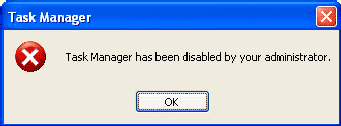
Did you having problem with your Task Manager?Always pop-up "Your task manager has been disabled by Administrator"?
Try this!
Start > Run > gpedit.msc > User Configuration > Administrative Templates > System > Ctrl+Alt+Del Options > Remove Task Manager > Put it into DISABLED
SOLVED!
Thursday, March 18, 2010
Increase Internet Connection
I finding something about network and I found this. It's useful for us that having slow internet connection. try and see your self the differences. Below is the way how to configure it :
- Access the Group Policy Editor. This can be done by typing gpedit.msc in the Run box (Start, and then Run). You will now be looking at something like this.
- Navigate to Computer Configuration/Administrative Templates/Network/QOS Packet Scheduler using the pane on the left side.
- In the left pane, there should be a Setting with the name Limit reservable bandwidth, right-click this and select properties.
- Now this might seem a bit weird, as the State will say “Not Configured” but Windows by default will reserve 20%. So the trick is to set it to reserve 0%. You can do this by clicking enabled and then setting the Bandwidth Limit % to 0. It should look like the image below.
- Hit OK then close the Group Policy Editor.
Creating remote desktop
Remote Desktop is ways that you want to control other pc from other place and computer.This is also are the best and simple ways to stay connect to your pc at home.
To allow remote connections on the computer you want to connect to, follow these steps:
1- On the computer you want to allow a connection, open the system through the Control Panel.
2- Click "Remote Settings". Under "Remote Desktop", select one of the two "Allow Connections" options. Click "Help Me Choose" if you're not sure which one is right for you. You may be prompted for an administrator password or confirmation during this step.
3- Click "Select Users".
4- In the "Remote Desktop Users" dialog box, click "Add" to add your name.
5- In the "Select Users dialog" box, click "Locations", and choose the location you want to search.
6- In the "Enter The Object Names To Select" box, type the name of the user to add. Click OK.
7- In the "System Properties" dialog box, click OK.
To start Remote Desktop on the computer you want to work from, follow these steps:
1- Open "Remote Desktop Connection" (click the Start button, and search for Remote Desktop Connection).
2- In Computer, type the name of the computer to which you will be connecting. You can type the "IP" address of the computer instead of the name if you prefer. If you don't know your computer's name, click the Start button, and then click "Welcome Center". The computer name will be at the top of the window.
3- Click "Connect".
To allow remote connections on the computer you want to connect to, follow these steps:
1- On the computer you want to allow a connection, open the system through the Control Panel.
2- Click "Remote Settings". Under "Remote Desktop", select one of the two "Allow Connections" options. Click "Help Me Choose" if you're not sure which one is right for you. You may be prompted for an administrator password or confirmation during this step.
3- Click "Select Users".
4- In the "Remote Desktop Users" dialog box, click "Add" to add your name.
5- In the "Select Users dialog" box, click "Locations", and choose the location you want to search.
6- In the "Enter The Object Names To Select" box, type the name of the user to add. Click OK.
7- In the "System Properties" dialog box, click OK.
To start Remote Desktop on the computer you want to work from, follow these steps:
1- Open "Remote Desktop Connection" (click the Start button, and search for Remote Desktop Connection).
2- In Computer, type the name of the computer to which you will be connecting. You can type the "IP" address of the computer instead of the name if you prefer. If you don't know your computer's name, click the Start button, and then click "Welcome Center". The computer name will be at the top of the window.
3- Click "Connect".
Monday, January 4, 2010
problem with sound card
Hi guy! we meet again..This is the information that I can share with you guy...if you are using sound card on your pc...this is one of the ways to solve your problem...
If it's a sound card, remove the drivers.
Shut down the PC an remove the card.
Power up and verify that Windows does not see any sound card.
Try use your built-in to check whether it could function on built-in
Power down and reinstall the sound card.
Power up and when Windows identifies the new card, specify where the
driver file you downloaded is on your hard disk and then let Windows
install the new drivers from that location on the hard drive
If it's a sound card, remove the drivers.
Shut down the PC an remove the card.
Power up and verify that Windows does not see any sound card.
Try use your built-in to check whether it could function on built-in
Power down and reinstall the sound card.
Power up and when Windows identifies the new card, specify where the
driver file you downloaded is on your hard disk and then let Windows
install the new drivers from that location on the hard drive
Thursday, December 17, 2009
Can't boot in safe mode
Before this I also having this problem when repairing pc's so you need to follow the step below to start safe mode after to configure you pc. It should be solve your problem.
1. Click start
2 .Click run
3. Type msconfig and hit enter
4. Click the radio button for Diagnostic Startup
5. Click apply and close
6. In the dialogue box that appears click restart
7. When windows restarts you will be in safe mode
8. Minimize the window and run your programs
9. When you are done, go back to normal startup.
1. Click start
2 .Click run
3. Type msconfig and hit enter
4. Click the radio button for Diagnostic Startup
5. Click apply and close
6. In the dialogue box that appears click restart
7. When windows restarts you will be in safe mode
8. Minimize the window and run your programs
9. When you are done, go back to normal startup.
Hdd low level format
This tools i founded to make low level format. It's easy to use the software.
to download the tool click here try it..
to download the tool click here try it..
Tuesday, December 8, 2009
My laptop cannot connect to wireless and problem ip addresses
I had repair someone laptop that using celcom broadband before this. His computer cannot connect to wireless signal. I though problem with ip address and I renewing the ip addresses but still having a problem.Below is ways to solve it..
- Hover your mouse to My Computer(for win XP) or Computer(win vista and win 7)
- right click and go to the properties..
- If you are using Win XP click to hardware tab after that click Device Manager and for Win Vista and Win 7 just click to the Device Manager

- After that just install the driver back
- It's easy right?No need to headache to find the solution..good luck!

Sunday, November 22, 2009
how to view routing table
Sorry for long time not posting new entry..
This is the ways to view your routing table...
This is the ways to view your routing table...
- click start > Run
- type cmd on the textbox area
- after appear Command Prompt window
- type netstat view
Sunday, November 15, 2009
how to renew IP address
This is the simple ways to get unique IP address..
- Go to Run -> type cmd -> ipconfig /release -> ipconfig /renew
- Turn off your modem for 15 second ->delete all cookies in your web browser
- Restart of Shutdown your PC.
Saturday, November 14, 2009
Hamachi
What is Hamachi? Hamachi is one of software use to connect other computer on WAN..I will show how to setup Hamachi on your pc..Let's do it now..
Friday, November 13, 2009
Nuffnang Team
Kindly please leave your link cause I wan to bookmark it..So it's easy for me to shoot your nuffnang and I will put your link behind the entry...
don't forget to click my nuff everyday I will hit you back
Thursday, November 12, 2009
How to remove autorun.inf from USB Drive
After I make some research I found new ways to remove autorun.inf from your USB drive or flash drive.

- Open the My Computer from your desktop or start up menu
- Click View and go to Folder Option
- Click on View tab
- Change to show hidden files, folders and drive
- Unchecked the Hide empty drives in the Computer folder
- Unchecked the Hide the extensions for known file types
- Unchecked the Hide protected operating system files
- Click Apply and followed OK button on below
- Open your Flash Drive from search bar
- Lastly press Shift+delete to permanently delete file name autorun.inf
To all my friends
Beside the entry have a link to my other blog..pease visit and be my follower..thanks for supporting me..
Wednesday, October 21, 2009
Apache http Server
Hye guy! we meet again. Today I just want to help my knowledge how to setup Apache http server. Maybe you can refer to the youtube.com but you need to find the video first if you refer to me just below my post I already put the video to you just refer to the video.
Okay let's say you want to setup the Apache. I give you some simple instruction to follow
Good luck my friend, kindly all you can give some response / feedback.
Okay let's say you want to setup the Apache. I give you some simple instruction to follow
- Download the Apache http from apache.org or click this link for windows only: click here
- Open the installer and setup it
- When chage on the network domain field to the localhost
- Change also the server name to localhost and Administrator Email address to admin@localhost
- After that click next and wait for the installation finish
Good luck my friend, kindly all you can give some response / feedback.
Tuesday, October 20, 2009
Drive Protection
Follow the instruction to remove a trojan and make a drive protection. This will remove the autorun.inf from executing in your system.
follow this instruction :
follow this instruction :
- Click Start -> Run.
- Type notepad and press Enter.
- Copy all the text below into Notepad.
@echo offset drv=c:\attrib -A -H -S -R %drv%\autorun.infdel \\.\%drv%\autorun.inf\"lpt3.This folder was created by Flash_Disinfector"rd %drv%\autorun.inf - Save this as remove_fd.bat to your Desktop (remember to select Save as file type: All files in Notepad).
- Double Click remove_fd.bat and wait for the dos window to close and file.txt will appear on the desktop.
- Repeat previous steps to all drives, make replacing c with the appropriate drive letter.
This is a program designed and developed by sUBs (author of combofix) to clean autorun.inf Trojans that are executing on the system.
Intrusion Detection Systems
what is intrusion detection systems?what is use for?how we can get it?what are the software?
Intrusion detection systems is one of the ways you to protect you network from being attack by hacker or cracker. Intrusion detection system means to differentiate between an authorized entry and a malicious intrusion. There are two types of intrusion detection systems that is signature-based and heuristic-based. Intrusion detection systems also known as IDS.
Snort are one of the intrusion detection systems famous software but it hard to configure. How it's work? Snort also will tells you where are the attack came from and lot of more. This software also can terminate the connection the suspicious events.
You can download this kind of intrusion detection software from www.snort.org. How to configure this software? You can refer this video below or you can get the instruction from snort.org.
Intrusion detection systems is one of the ways you to protect you network from being attack by hacker or cracker. Intrusion detection system means to differentiate between an authorized entry and a malicious intrusion. There are two types of intrusion detection systems that is signature-based and heuristic-based. Intrusion detection systems also known as IDS.
Snort are one of the intrusion detection systems famous software but it hard to configure. How it's work? Snort also will tells you where are the attack came from and lot of more. This software also can terminate the connection the suspicious events.
You can download this kind of intrusion detection software from www.snort.org. How to configure this software? You can refer this video below or you can get the instruction from snort.org.
Subscribe to:
Posts (Atom)
